How to record MyFreeCams with CaptureGem
myfreecams.com
Type the exact MyFreeCams username, or paste a myfreecams.com/#username link. No MyFreeCams account needed.
- What to enter
- Username
- Account
- You don't need a MyFreeCams account.
1. Install CaptureGem
CaptureGem is a desktop app for Windows, macOS and Linux. Install it from capturegem.com and launch it. If you already have CaptureGem, update to the latest version.
2. Find the username
https://www.myfreecams.com/#model_username
CaptureGem needs the username exactly as it appears on MyFreeCams, and typing it is the easiest way. A link in the form above also works, because the username follows the #.
share.myfreecams.com profile links and other MyFreeCams link styles aren't supported yet; type the username rather than pasting those.
3. Add the stream
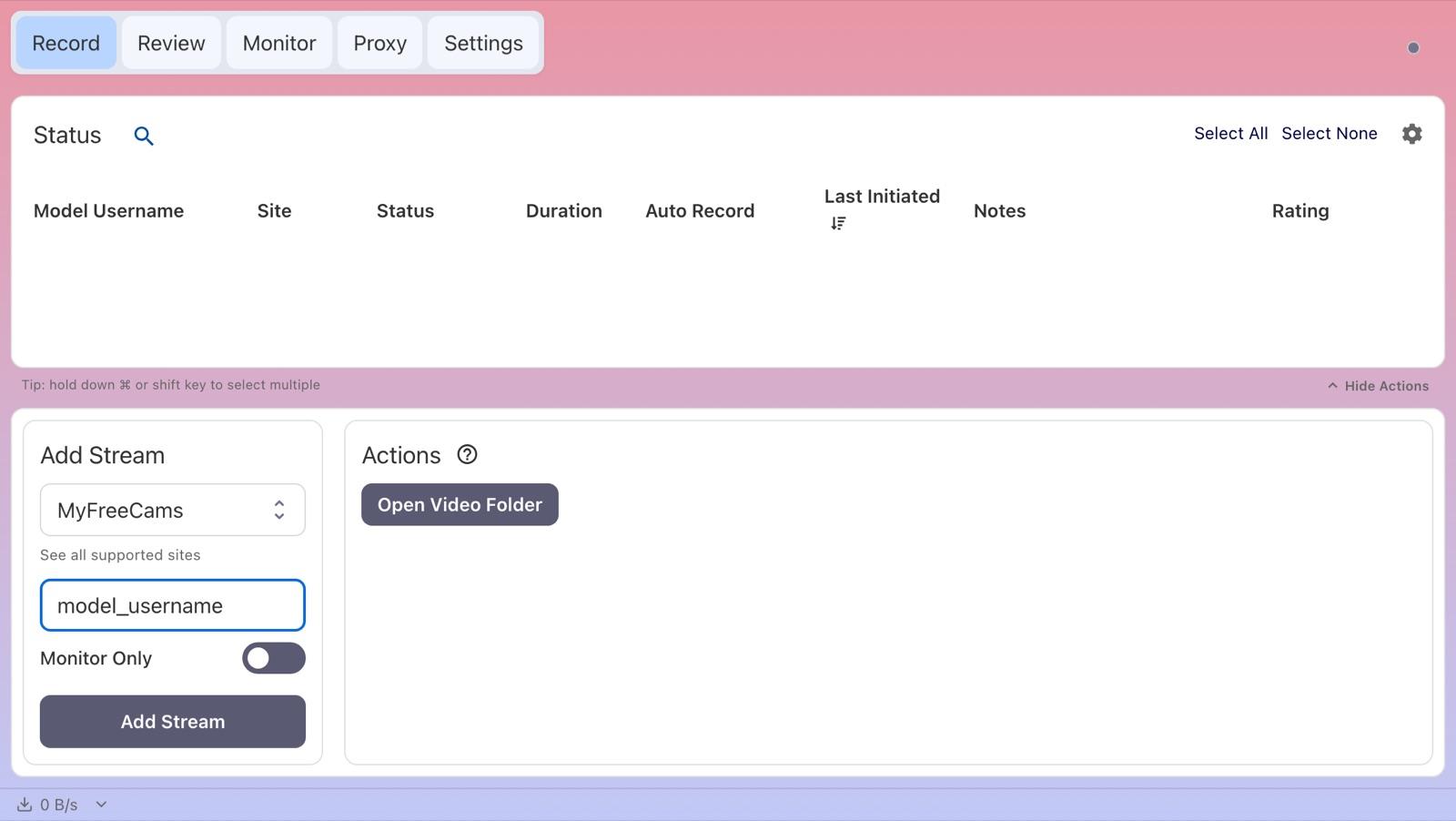
Open the Record tab and use the Add Stream panel. Set Select Website to MyFreeCams and enter the username in Enter URL or Username. Leave Monitor Only switched off so the stream gets saved, then click Add Stream.
4. Record
Once the model is in a public show, the status switches to Recording in a few seconds.
What the statuses mean on MyFreeCams
- Private: a private, group or club show.
- Offline: the model is offline or away.
- Errored: the model couldn't be found or the stream couldn't be recorded. The message "MyFreeCams lookup did not return a valid model" typically points to a typo in the username.
Hover over a status for more detail, including the reason behind an Errored status.
Free and Premium
Free: recordings are capped at 5 minutes each, and your list holds up to 10 models. A recording only starts if the model is live when you add or start them; if they were offline, start it again later.
Premium: lifts both limits and unlocks auto-record. Pick the model on the Record tab, go to Modify Auto Record in the Actions panel, select Record Always and click Confirm. From then on a recording starts each time the model goes live and resumes after a dropped connection. The Auto Record All Newly Added Models option in Settings applies this to every model you add.
Live previews of everything being recorded appear on the Monitor tab.
Compare the Free and Premium plans
5. Find your recording
After a recording stops, CaptureGem turns it into a video file; give long recordings a little time. The Review tab lets you play, trim, tag or delete it, and Open Video Folder on the Record tab opens the folder they are saved in.
MP4 is the default format. Premium splits recordings into files of up to 60 minutes by default, and auto-record rolls straight into the next file. In Settings you can pick another save folder, another container, or a different file length (Cap Video Segments at Duration (Minutes)).
Overview of the CaptureGem settings
MyFreeCams notes and troubleshooting
- The show turns private while recording: The public stream stops, so the recording ends. The next check shows Private, and auto-record starts a new recording when the public show resumes.
- A pasted link recorded the wrong name: That happens with share.myfreecams.com links. Delete the entry and add the model again by typing their username.
- Private shows: Only public shows are captured directly. A private show that already plays in your own browser can be saved with the Proxy feature, which is part of Premium.Proxy guide: WindowsmacOSLinux
- Still failing: If recordings keep failing, update CaptureGem and check that the stream plays in your browser. Premium members can also send a failed recording to CaptureGem support.Send a failed recording to support