CaptureGem vs CTBRec: which cam recorder to use, and how to switch
Updated
The short answer
- Pick CaptureGem if you want MP4 files that play straight away, a library that builds itself, VR recording, and more than twice as many built-in sites as CTBRec lists.
- Pick CTBRec if you put free, open-source software first, or you want a recorder on a home server that you drive from a desktop GUI, and you don't mind configuring post-processing yourself.
- For most people recording a set of favorite rooms on a desktop or laptop, CaptureGem is the easier and more complete choice.
CaptureGem and CTBRec at a glance
Scroll the table sideways to see both columns.
| Feature | CaptureGem | CTBRec |
|---|---|---|
| Price | Free version; Premium for unlimited, automatic recording | Free and open source, supported by donations |
| Operating systems | Windows, macOS and Linux | Windows, macOS and Linux (Java runtime bundled) |
| Built-in sites | 25, including three VR sites | 11 listed on its website |
| Other platforms | 130+ more through Streamlink | Not advertised |
| VR recording | Side-by-side fisheye MP4 for headset players | Not advertised |
| File format | MP4 by default, MKV optional | MPEG transport stream (.ts); remux step for MP4 or MKV |
| Browsing recordings | Review tab with automatic image grids, tags, favorites and deletion protection | Recordings list; contact sheets through a post-processing step you add |
| Trimming and joining | Built-in editor and Combine Videos | No built-in editor advertised; FFmpeg steps or other tools |
| Cross-site groups | Yes, with Premium | Not advertised |
| Server use | Headless recorder on Linux with a local HTTP API (advanced) | Server package controlled from the desktop GUI |
Toolkit or finished workflow
Both apps handle the core job well. You give them a list of models, they watch for those rooms to go live, and they save the stream itself rather than filming your screen. They differ in how much is left for you to assemble afterwards.
CTBRec is a toolkit. It records dependably, then passes each file to a post-processing chain you assemble yourself: copy or rename it, move it, remux or transcode it through FFmpeg with arguments you supply, call a script, make a contact sheet, throw away clips that are too short. If you enjoy tuning a pipeline, that flexibility is exactly why long-time users stay.
CaptureGem is a finished workflow. Recordings arrive as MP4 files, a preview grid appears for each one automatically, and the Review tab gives you filters, tags and an editor without touching a setting. You give up some of CTBRec's scriptability and save a lot of setup.
Which sites each one can record
CTBRec's website names 11 supported sites: Chaturbate, Stripchat, MyFreeCams, BongaCams, Cam4, CamSoda, Flirt4free, Streamate, XloveCam, Dreamcam and FC2Live. If every room you follow is on that list, coverage won't hold you back. FC2Live is the one site there that is not built into CaptureGem, so check it before you switch.
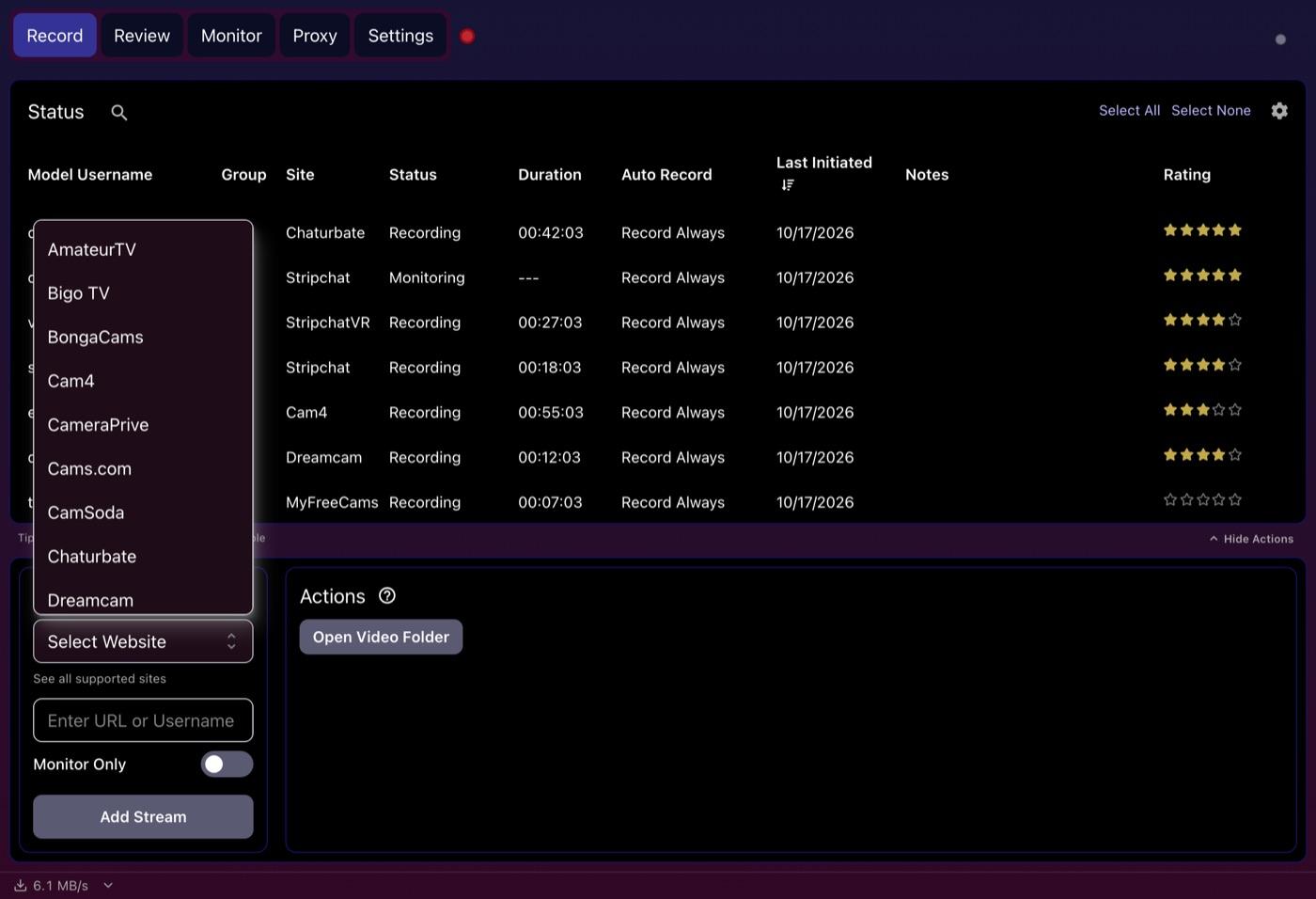
CaptureGem has 25 built-in sites. Beyond the big names it adds XHamsterLive, CameraPrive, Jerkmate, CamModels, LiveJasmin, ManyVids, Cams.com, XCams, AmateurTV, Sexchat.hu, TangoMe, Bigo TV and Superlive, plus the VR sites StripchatVR, Dreamcam and SexLikeReal. More than 130 other streaming platforms, Twitch among them, work through Streamlink. The full list is on capturegem.com.
VR is the clearest gap. CTBRec lists Dreamcam but says nothing about VR formats or headset playback. CaptureGem writes each VR show to a side-by-side 120° fisheye MP4 whose name ends in _F120_LR, ready for players such as HereSphere; the StripchatVR guide shows the player settings.
What you have when a show ends
CTBRec writes MPEG transport stream (.ts) files. They hold the original video, but plenty of players and editors handle them awkwardly, so its FAQ points to HandBrake, Avidemux or its own remux step for MP4 or MKV. A contact sheet, one image made of thumbnails, is available once you add that step to post-processing.
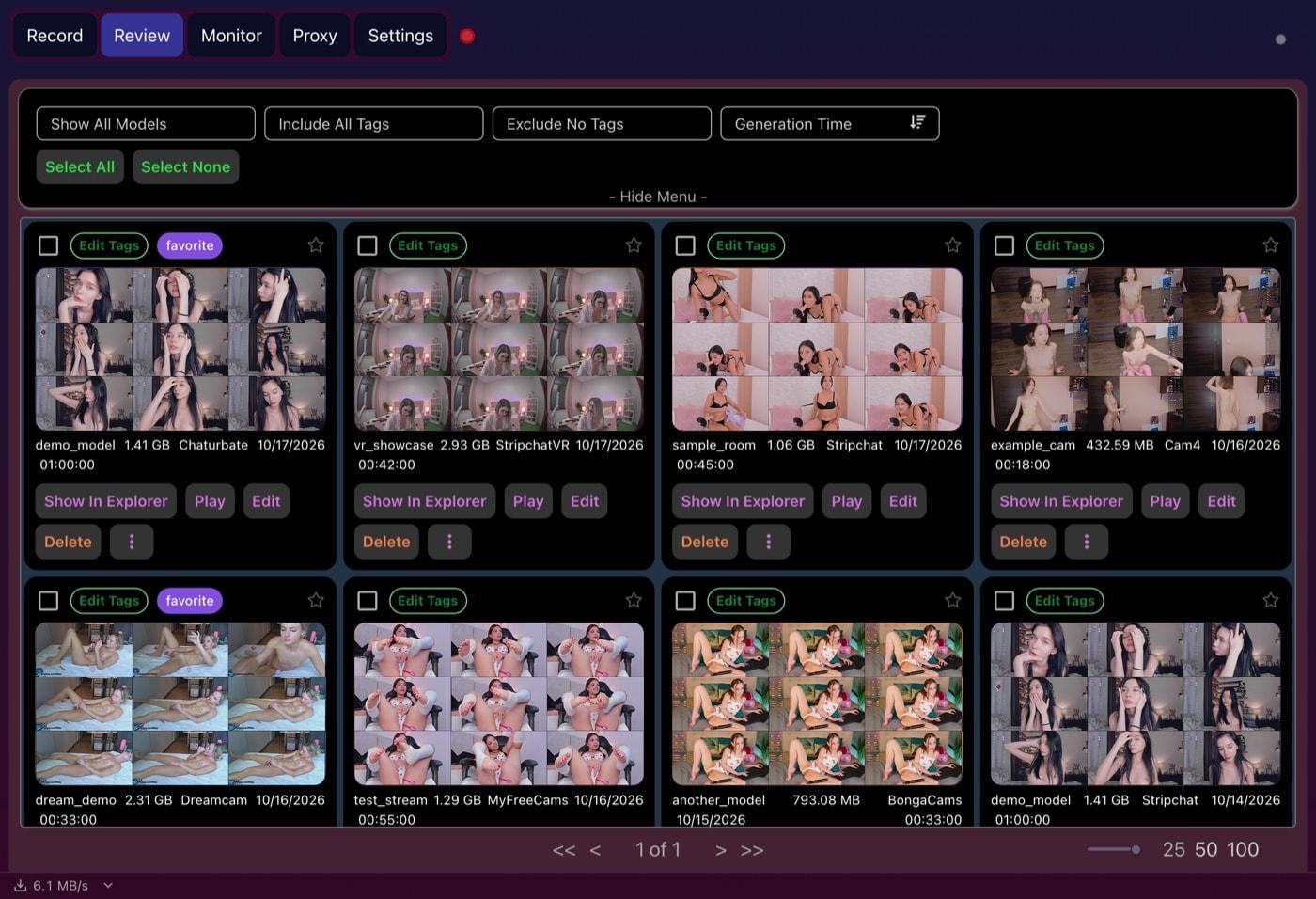
CaptureGem saves MP4 by default (MKV if you prefer) and builds an image grid for every recording without being asked. The Review tab narrows the list by model or tag, sorts it, lets you star favorites and set a review status, and offers deletion protection so a keeper never disappears by accident. Select several recordings to combine, export, retag or delete them together.
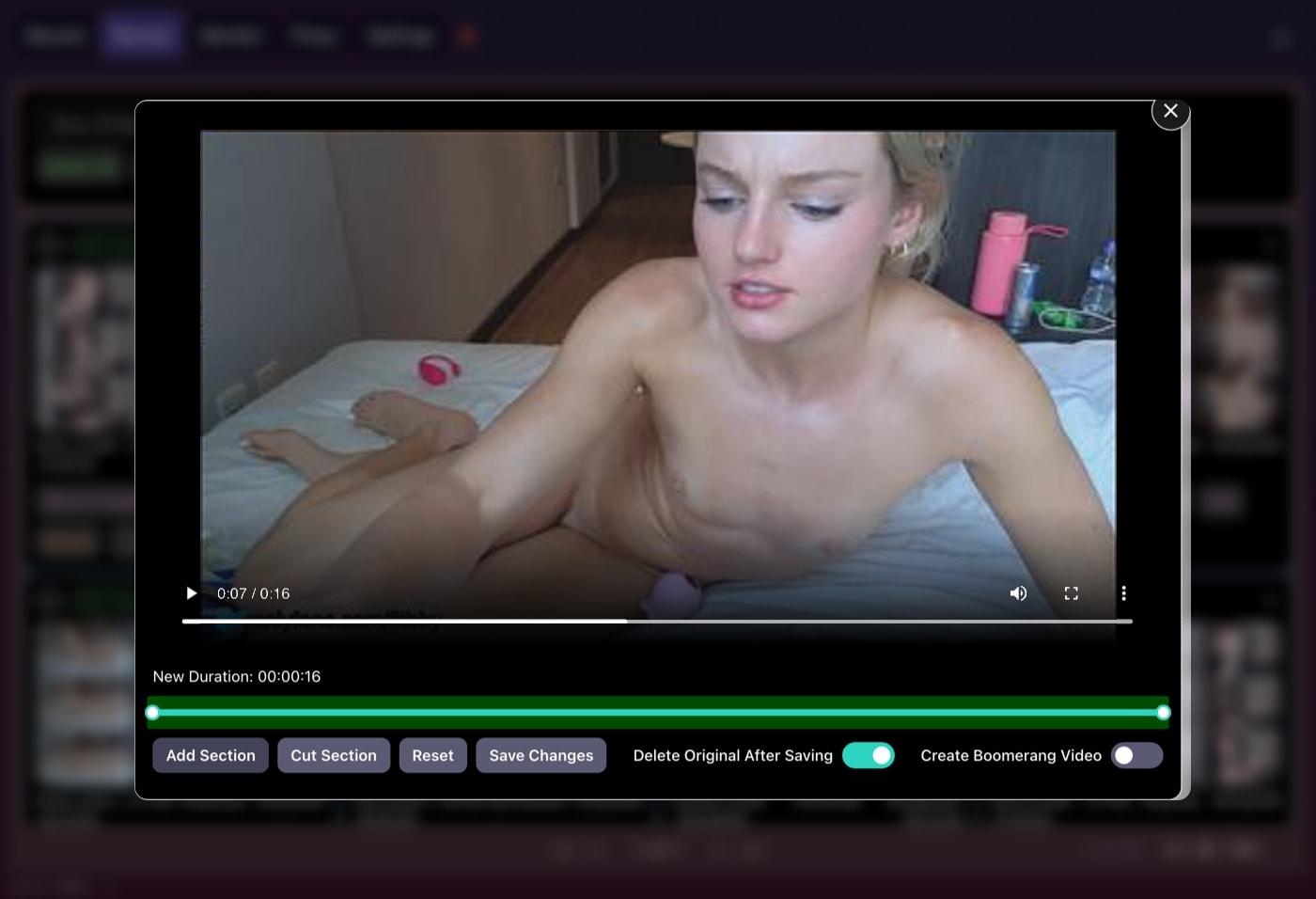
Trimming happens in the same window. In the built-in editor you mark sections to keep or cut, save the result as a new file and, if you like, delete the original once it is saved.
Following one performer across sites
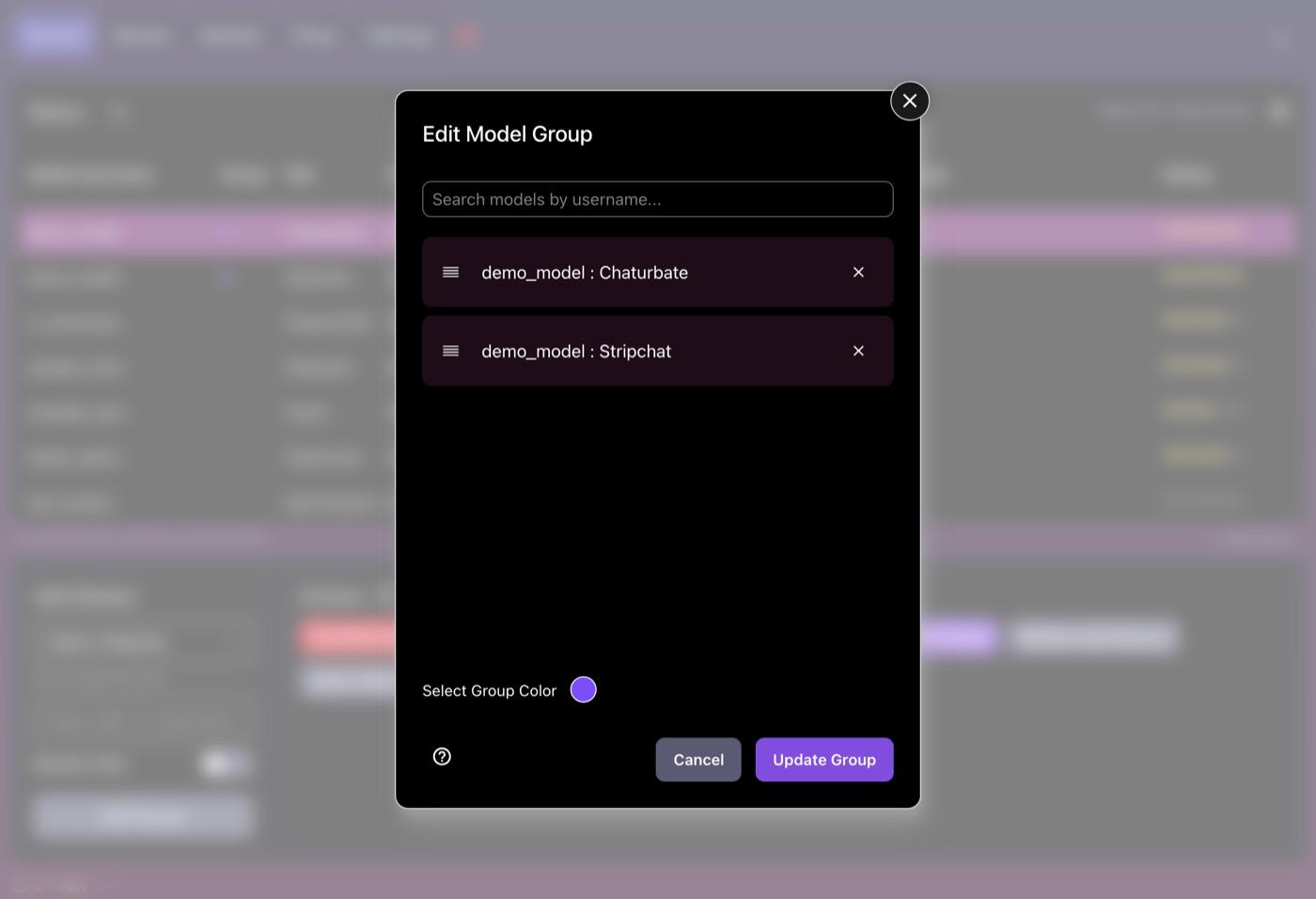
Many performers stream on more than one site. CaptureGem Premium lets you put those rooms in one model group, and when the performer goes offline or private on one site, CaptureGem can pick the show up from one of the other rooms in the group. CTBRec's site describes no equivalent, so each room stays a separate entry.
Recording on a server
This is where CTBRec shines. Its separate server package runs the recorder on another machine, such as a home server, and the normal desktop app connects to it once you set its recording location to Remote; the server itself is configured through a server.json file. Server-side post-processing has no UI, so you copy that configuration into server.json by hand, but after that you get a full GUI for a recorder that lives elsewhere.
CaptureGem's recorder can also run headless on Linux, without the desktop app, driven by a local HTTP API. It is a power-user feature, not a remote GUI, and six sites still need the desktop app running: LiveJasmin, XCams, ManyVids and Superlive record through it, and CamSoda and AmateurTV use its built-in browser for status checks. If an always-on server with a desktop front end is your main requirement, CTBRec does that better today. How the standalone recorder works.
Cost and licensing
CTBRec costs nothing and is open source; donations keep it going, and its code and releases sit on its own Git server. That is a real advantage: there are no plan limits, and anyone can read exactly what it does.
CaptureGem is free to download with no signup. The free version handles a list of up to 10 models and keeps the first five minutes of each recording, enough to confirm your sites work. Premium lifts those limits and brings auto-record, cross-site groups, as many simultaneous recordings as your bandwidth allows, Proxy mode and complimentary CamTrove Premium. See the current Premium plans.
Which recorder fits your setup
- Choose CaptureGem if you want ready-to-play MP4 files, a review library with no setup, VR recording, sites beyond CTBRec's list, or groups that follow one performer across sites.
- Choose CTBRec if you need free, open-source software, want to script every step after a recording, or plan to run the recorder on a server and steer it from a desktop GUI.
- Not sure? Both cost nothing to try. Run CaptureGem's free version on a few rooms and compare the files and the workflow.
Moving from CTBRec to CaptureGem
- Download CaptureGem for Windows, macOS or Linux. No account or signup is required.
- Make a note of the models you follow in CTBRec, with each room's link or username.
- On CaptureGem's Record tab, choose the site from Select Website, paste the room link or username, then press Add Stream. The recording guides show what to paste for each site.
- With Premium, highlight a model, click Modify Auto Record, pick Record Always and confirm. Turning on Auto Record All Newly Added Models in Settings does the same for everyone you add.
- Choose your save folder in Settings. Your old .ts files still play; remux them once with your usual tool if you want the whole collection in MP4.
- Close CTBRec once CaptureGem is covering your rooms, so two recorders are not downloading the same stream.
Bottom line
CTBRec is capable, honest free software, and its server mode is the best reason to keep it. For everyone else, CaptureGem gets you further with less effort: more than twice the built-in sites, VR, MP4 from the start, and a library and editor that are ready the moment your first recording finishes. Start with the free download, add the rooms you follow, and move to Premium when you want it to run unattended.
Only record streams you are entitled to keep, and treat performers, each site's rules and your local laws with respect.